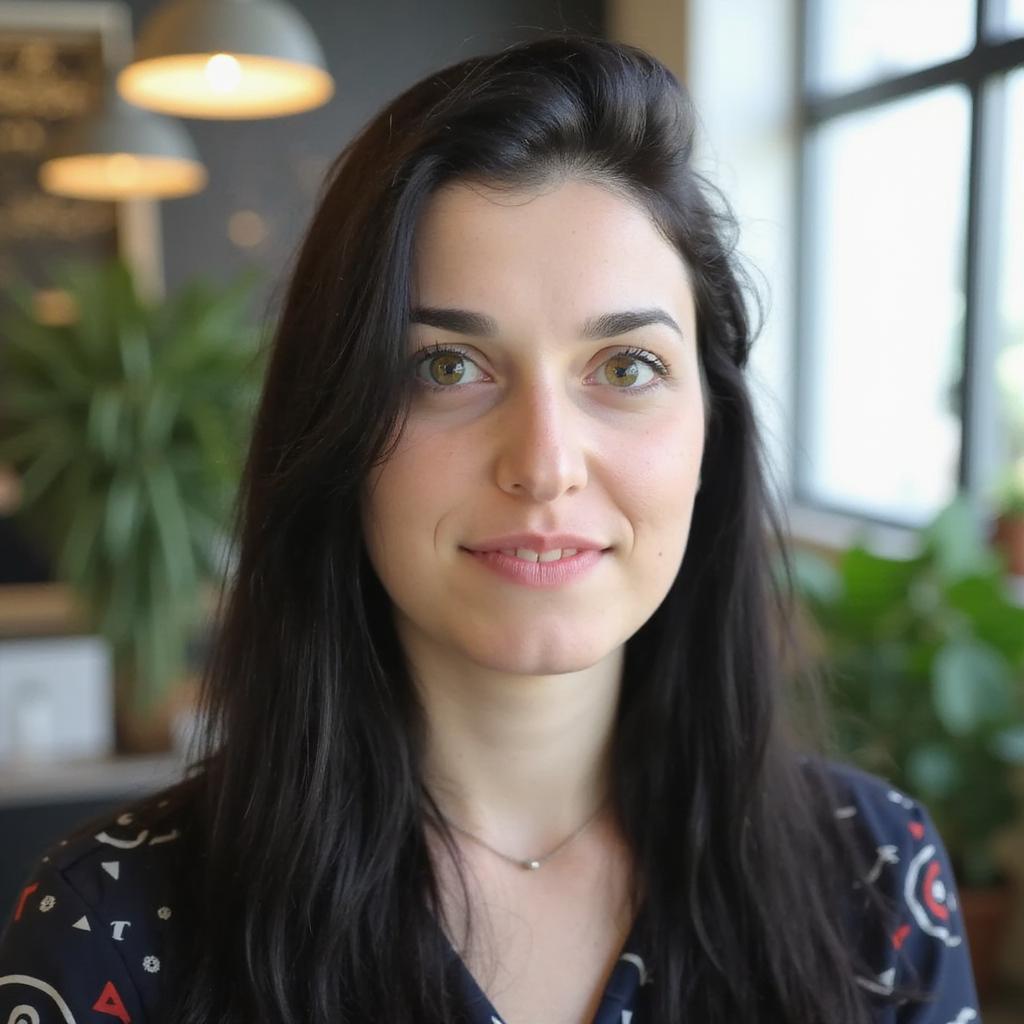
To animate static images into video with AI, start with one strong still image, describe a realistic camera or subject movement, generate a few short variations, then choose the cleanest clip for the channel. Image to video AI works best when the still already has a clear subject, depth, and lighting cues. A product photo, campaign still, avatar portrait, or AI-generated frame can become a 4-8 second video for Reels, TikTok, Shorts, ads, product pages, or launch content.
The trick is not pushing a magic button. It is building a repeatable creative workflow: source image, motion prompt, settings, review, edit, hook, caption, and test. This guide shows how to use an image to video AI workflow inside Videotok, then connect the result to broader AI video production instead of treating the clip as a one-off render.
What image to video AI actually does
Image to video AI reads a still image and predicts a short motion sequence from it. The motion might be a camera push-in, parallax, product rotation, atmospheric movement, fabric motion, a subtle facial gesture, or a cinematic reveal. It is different from a slideshow because the model tries to create movement inside one frame rather than cutting between multiple pictures.
The strongest outputs come from stills with one clear focal point. A perfume bottle on a reflective surface can support slow camera movement and light shifts. A creator portrait can support subtle handheld motion. A product lifestyle image can support gentle parallax between foreground and background. A flat logo, crowded collage, or tiny subject gives the model less visual information to extend.
Creative rule: ask for motion that could plausibly happen in the original frame. If the source image shows a sneaker on concrete, a slow dolly-in, soft shadow movement, and a small dust lift will usually look cleaner than asking the sneaker to fly through a city.
Build an AI product video workflow for social ads, from product input and hooks to scenes, editing, publishing, and performance learning.
Build an AI product video workflow for social ads, from product input and hooks to scenes, editing, publishing, and performance learning.
How to animate static images into video with AI
Use this workflow when you need a short, performance-ready clip from an existing visual. It works for e-commerce product shots, AI campaign images, creator stills, brand assets, thumbnails, real estate scenes, and launch visuals.
Choose the source image
Pick one hero subject and avoid images where the important element is small, blurry, or blocked. For vertical social, start with a vertical or easily crop-safe image. For product ads, leave enough negative space for captions or safe-area overlays later.
Good source images usually have one of these qualities:
A product with visible material, shadows, and clean background depth.
A person or avatar with natural lighting and a stable face angle.
A campaign still that already feels like the first frame of a storyboard.
A scene with foreground and background separation for parallax.
Upload or create the image in Videotok
Upload the image you want to animate, or create a new AI image first and use it as the starting frame. This is useful when the team needs a product-style composition, a cinematic campaign frame, or a visual direction before committing to motion.
Videotok media workflow with uploaded images ready to animate into short image to video clips
Write one precise motion prompt
A good motion prompt describes camera movement, subject movement, speed, mood, and a constraint. Keep it focused. One or two motion ideas are usually stronger than a paragraph full of competing instructions. Prompt formula: camera movement + subject motion + mood + constraint.
Example: “Slow push-in toward the product, soft studio reflections, premium beauty ad mood, keep the bottle shape stable.”
Choose settings for the channel
Set the generation mode to video and choose image to video. Then select the model, aspect ratio, duration, and any template that matches the channel or campaign. If the clip is going into a paid social test, create at least two versions with the same source image but different motion intensity.
Videotok generation settings for choosing image to video model, aspect ratio, and duration
Generate variations, then select the cleanest clip
Do not judge the workflow by a single render. Generate two or three variations with small changes: slower camera move, tighter crop, softer lighting, less subject motion, or a shorter duration. The best version usually keeps the original subject recognizable while adding enough movement to earn attention in the feed.
Motion prompts you can copy
Use short prompts first. If the result is too still, increase the motion. If the result distorts, reduce ambition and ask for fewer moving elements.
Product ad: “Slow dolly-in toward the product, soft reflections across the packaging, clean studio light, keep logo and label stable.”
E-commerce reel: “Camera pans from left to right, gentle parallax in the background, premium lifestyle mood, natural shadows.”
AI avatar or creator still: “Subtle handheld camera movement, natural breathing, slight hair motion, confident social video energy.”
Fashion or beauty visual: “Slow cinematic zoom, fabric movement from a light breeze, warm highlights, editorial campaign mood.”
Real estate or travel image: “Smooth forward glide through the scene, clouds moving slowly, realistic depth, no sudden camera shake.”
App or SaaS visual: “Clean camera push toward the device, subtle screen glow, realistic desk reflections, keep interface elements stable.”
If the model breaks the subject, use safer verbs: push in, pan, drift, parallax, glow, reflection, breeze, camera shake, handheld, reveal. Avoid asking the still image to perform actions that are not visually supported by the original frame.
Turn animated images into a creative testing workflow
For e-commerce teams, image to video turns product photos into short clips for launches, collection pages, retargeting, and paid social. The goal is not to fake a full production. It is to get usable motion from assets the team already owns.
For UGC-style creative, a still frame can support the first seconds of a video, a cutaway after a testimonial-style line, or a product proof point. For commercial ads, the same source image can become a luxury reveal, a fast scroll-stopper, a clean product loop, or a background plate for captions.
The professional move is to treat the image to video clip as one piece of a system: reference, hook, script, still image, motion, voiceover, caption, edit, schedule, and iteration. Pair the clip with stronger AI video hooks, a tighter TikTok script workflow, and clear brand rules so every variation still feels like the same brand.
Testing rule: change one variable at a time. Test the same image with three motion styles, or the same motion with three hooks. If you change source image, script, hook, duration, and CTA at once, performance data becomes hard to read. Use an AI creative testing workflow when the clip is going into paid social.
Quality check before exporting
Before you use the output, check for distorted hands, warped faces, broken product labels, jittery camera movement, unreadable packaging, strange shadows, and motion that distracts from the offer. For ads, also check safe areas, caption space, platform aspect ratio, and whether the first second communicates the creative idea.
Keep the human review step. AI can produce variations quickly, but a person still has to choose the version that protects the product, brand, and campaign message. That is the difference between a nice render and a usable creative asset.
FAQ about image to video AI
What is the best image for image to video AI?
Use a high-resolution image with a clear subject, clean lighting, and enough background depth for motion. Product photos, portraits, lifestyle stills, and cinematic AI images usually work better than flat graphics or crowded collages.
How do I animate a static image without distortion?
Ask for subtle, realistic motion first. Use phrases like slow push-in, gentle parallax, soft reflections, light breeze, or slight handheld movement. Avoid impossible actions that are not visible in the original frame.
Can image to video AI create ad creatives?
Yes, if the source image is strong and the prompt is written around a clear creative job. For ads, create several motion variants from the same image and compare hook retention, click-through rate, and conversion quality before scaling.
Is image to video the same as a slideshow?
No. A slideshow moves between multiple images. Image to video AI animates one still image by adding camera movement, subject motion, depth, or atmosphere inside the frame.
How long should an image to video clip be?
For social and ads, start short. A 4-8 second clip is often enough for a hook, product reveal, transition, or looping visual. Longer clips need stronger story structure, not just more motion.
Bottom line: image to video AI is strongest when it turns an already-good still into controlled motion, then feeds a larger creative workflow. Use it to multiply promising assets, not to rescue weak ones.
Build an AI product video workflow for social ads, from product input and hooks to scenes, editing, publishing, and performance learning.